 Syncgate
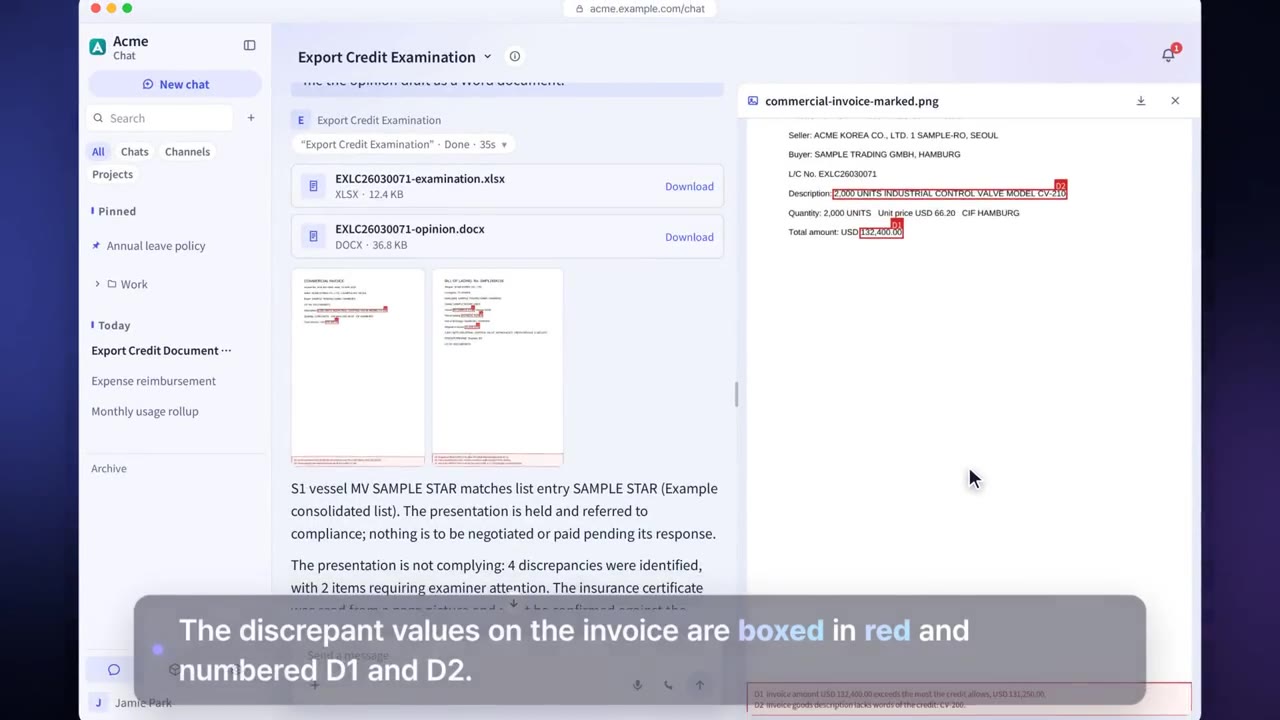
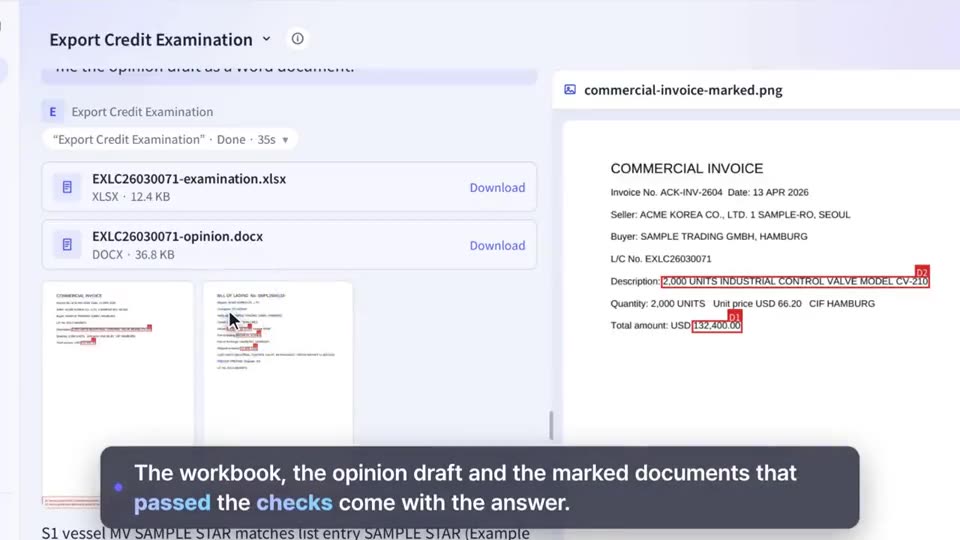
Answers limited to
what each user may see
Documents from Confluence, Jira, Slack, Box, Dropbox and others can be set to keep the permissions of their source system. Documents a user has no permission to see are left out of answers and source lists. Resources such as agents and knowledge bases are shared with separate Use, Read and Edit permissions, and you can require approval before sharing is widened.
Answers limited to
what each user may see
Documents from Confluence, Jira, Slack, Box, Amazon S3 and others can be set to keep the permissions of their source system. Documents a user cannot access are left out of both the answer and the source list.
No Q3 profit and loss data was found in the documents you can access.
Request access from FinanceBefore and after adoption
The AI could summarize an executive report for a new employee.
Answers use only the documents the person asking can see in the source system.
Sharing an agent also reveals all of its settings.
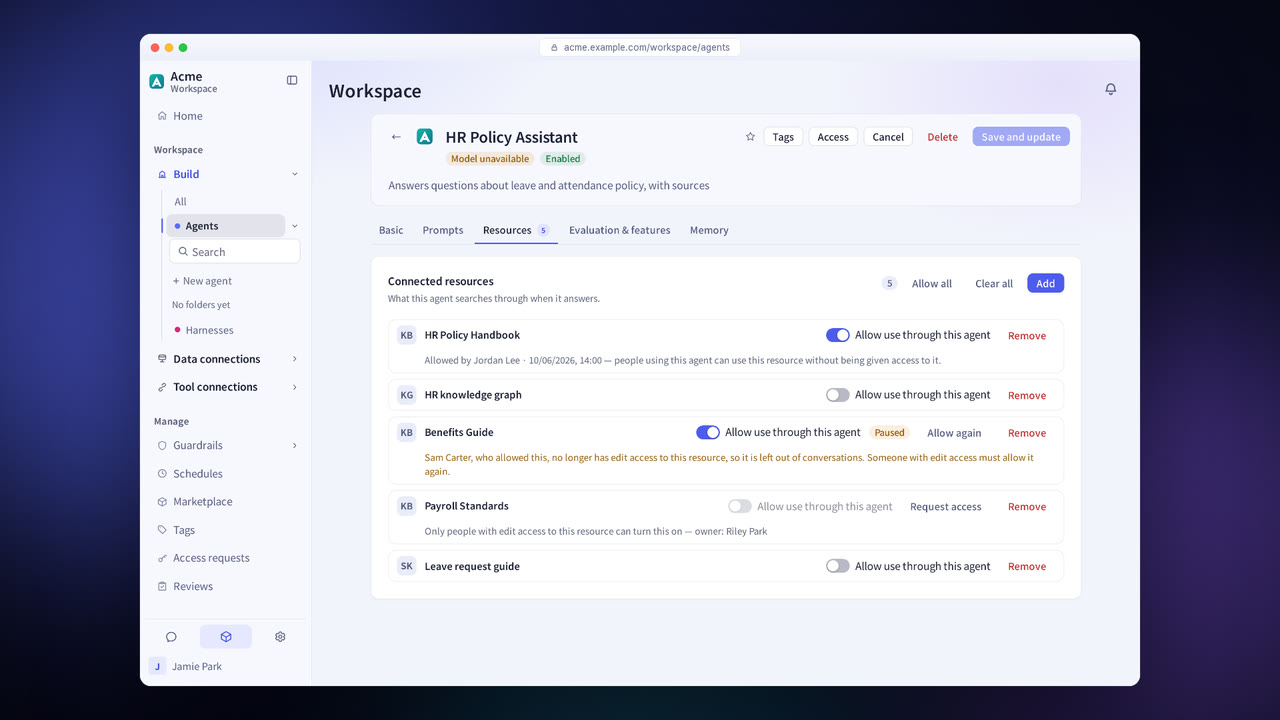
People given the “Use” permission can use a resource in chats or in other agents, but cannot see its configuration.
No one knows who widened sharing, or when.
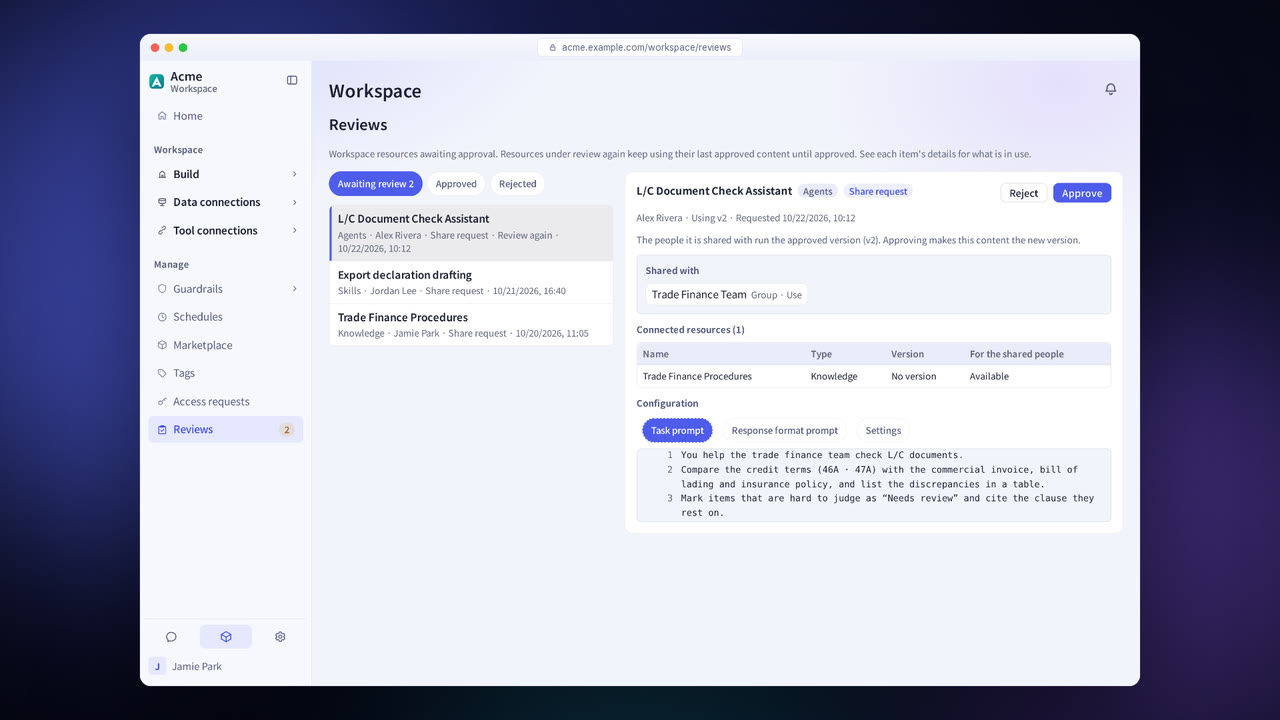
With share review turned on, approval is required before sharing is widened or edits are applied.
Four steps
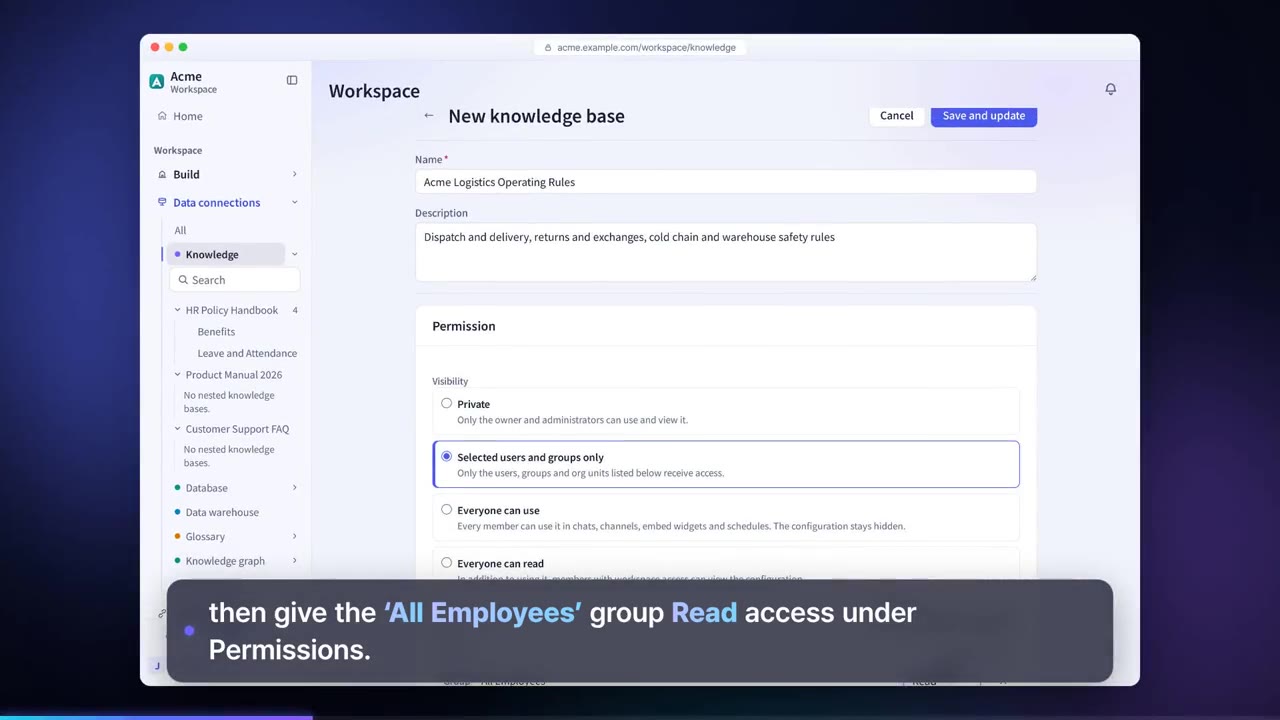
For Confluence, Jira, Slack, Box, Dropbox and others, you choose for each connection whether to keep the source system's permissions.
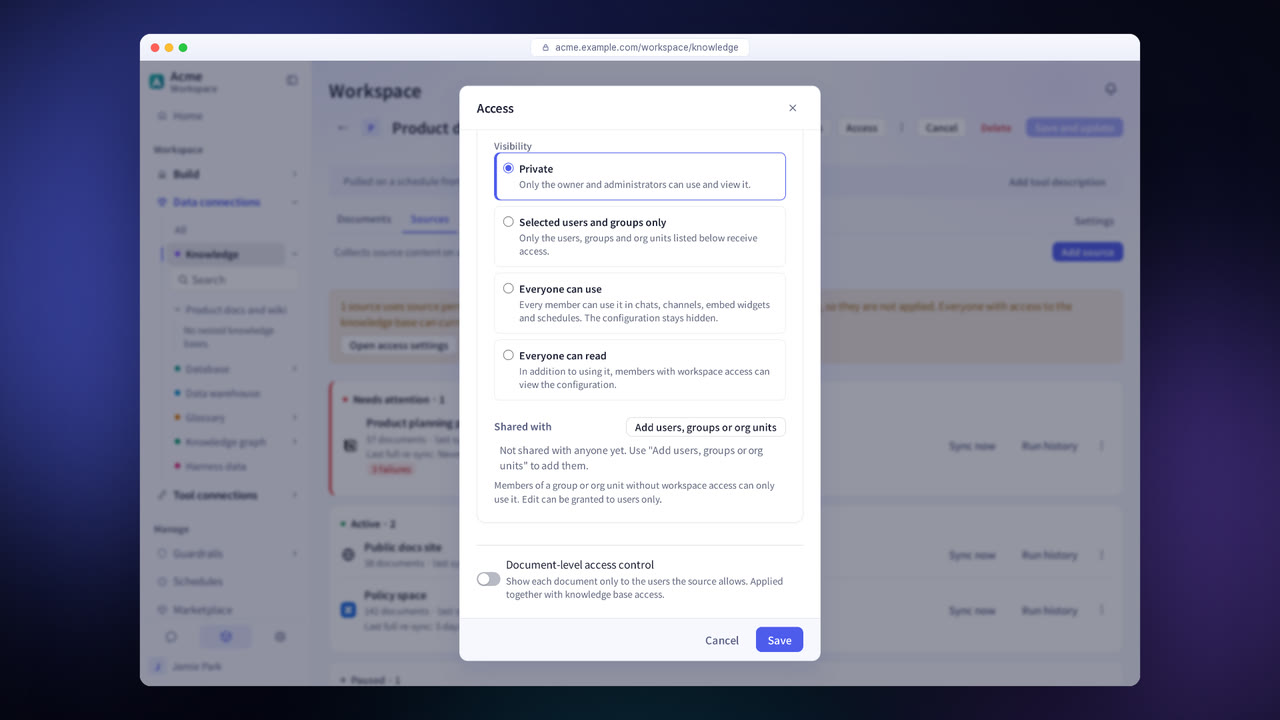
Grant each group, user or org unit one permission: Use, Read or Edit.
When share review is on for a resource type, sharing changes and edits take effect only after someone with review permission approves them.
To connect a resource that has not been shared with you to an agent, you ask its owner for permission to use it.
Permissions and share review features in detail
Apply source permissions
On connections set to follow source permissions, documents a user could not see in the source system are excluded from answers and citations. This is set on connections to Confluence, Jira, Slack, Box, Dropbox and others.
Use, Read and Edit
Each share recipient gets one of the three permissions.
Share review
Approval is required before sharing is widened or edits are applied.
Access requests
See the requests you have received and sent on one screen.
Sharing by org unit
Share by department, based on the org chart.
Roles
Grant permissions such as Workspace review by role.
Settings each company configures
- Turn on share review for each resource type.
- Use roles to set who can review.
- For Confluence, Jira, Slack, Box, Dropbox and others, choose for each connection whether to follow source permissions.
Figures reflect the product as of October 2026.
Related pages
Frequently asked questions about permissions and share review
Can the permissions of every source be followed?
No. Source permissions are followed for documents from Confluence, Jira, Slack, Box, Dropbox, GitLab, Amazon S3, Google Cloud Storage and Azure Blob Storage. Documents from other sources follow the knowledge base's permissions, and the connection screen says so.
What is the “Use” permission?
It lets a person use an agent or resource in a chat without seeing its configuration (prompts, connections and settings).
What does share review approve?
It approves wider sharing, the application of edits, and the use of imported skills.
See it with
your own documents
In a consultation, we connect a few of your documents so you can check the answer quality for yourself. Send us your questions and our team will get back to you.